
prepare-deployment-package configuration
First we need to define what deployment package is. It can also be named “installation package”. We'll understand under deployment package a bunch of application binaries and installation logic (e.g. shell scripts) required to deploy these binaries to target environment. On our project deployment package contained ZIP files with applications and PowerShell/bash deployment scripts.Suppose you have a Visual Studio solution with multiple projects (app1, app2, service1):

You've already set up configuration to build the solution:

Let’s assume deployment envisions installing applications on several machines within local network. Some apps/services must be installed on MachineA, other – on MachineB. You want your applications to be in a separate ZIP files so only required ones can be copied on target machines. Let’s create TeamCity configuration that packs app1 binaries into zip file. On Project1-master home page click Edit Project Settings link then click Create build configuration link. Name configuration as pack-app1:


Proceed to VCS settings page. Attach VCS root which references repository that contains app1 source code (VS solution source code). In VCS checkout mode select Do not checkout files automatically. VCS root is required only to enable TeamCity to show source code changes history for every pack-app1 configuration run. If you are not interested in this history you can do nothing on VCS root attaching step.

Navigate to Dependencies page:

Add new snapshot dependency.

Add new artifact dependency.

Oh, TeamCity says that build #2 of build-solution-release configuration does not contain artifacts. View build-solution-release configuration home page:


Of course – this configuration does not publish any artifacts yet. You may ask what artifacts are and why configuration may want to publish them? Using simple words, artifacts are set of files produced as a result of configuration run. These files may be passed as arguments to other TeamCity configurations, like arguments can be passed from function to function in programming language.
What files build-solution-release configuration produces? It produces binary code files – result of Visual Studio solution build process. Binaries for app1 application most probably reside in app1\bin\Release subfolder. Let’s edit Artifacts paths and set its value to *\bin\Release\**

Wildcards in path are intuitive. Basically we want to publish binaries for app1, app2 and service1 and we know that all apps reside in a root directory of the repository. So following directories will be published:
app1\bin\Release
app2\bin\Release
service1\bin\Release
Rerun build-solution-release configuration:

Perfect. Now build-solution-release configuration publishes compiled binaries! Let’s return to Dependencies screen of pack-app1 configuration. Click Add new artifact dependency link once again:

Ensure Build from the same chain is selected in Get artifacts from field. To retrieve only app1 binaries (instead of all apps binaries) enter app1/bin/Release/** in Artifacts path field (yes, you can use back or forward slashes). Save.
Ok, artifact dependency allows pack-app1 configuration to get files from build-solution-release configuration. But why we also added snapshot dependency? Snapshot dependency ensures that pack-app1 build will start only after the one it depends on (build-solution-release) is run and finished. Without snapshot dependency pack-app1 will never trigger build-solution-release configuration, thus via artifact dependency we could reference old app binaries.
Now when you run pack-app1 configuration it will trigger build-solution-release run (or will not if it is up-to-date), get from build-solution-release files located at app1/bin/Release path and put them into its home directory (each configuration has its unique home directory). Let’s publish app1 binaries as app1.zip file:

Run pack-app1 configuration again and ensure it does have app1.zip as its artifacts:

Using similar steps create pack-app2 and pack-service1 configurations. Tip: to save time go to pack-app1 configuration settings page and click Copy. Change name to pack-app2:

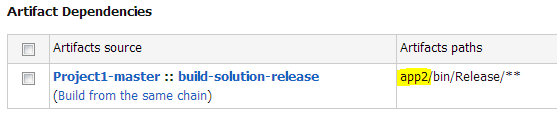
Edit artifacts dependencies – change app1 to app2:
On General Settings change app1.zip to app2.zip:

Done! Do the same for pack-service1.
Now let's create pack-deployment-scripts configuration. This configuration will not depend on build-solution-release but will instead take deployment scripts directly from source repository. In VCS checkout mode select Automatically on server (Checkout rules work only if this mode is selected). Click edit checkout rules and in Edit Checkout Rules dialog, enter +:deployment. This rule will inform TeamCity that we want to checkout only one folder from our VCS – root-located deployment folder.

Finally we have all necessary deployment components:

You can run only required configuration (say pack-app2) and download ready to run application binaries.
As a final step we’ll create prepare-deployment-package configuration which will merge artifacts from all previously created pack configurations. This configuration shall not checkout source code from VCS. Setup snapshot and artifacts dependencies in a following way:

On General Settings:

Now run the configuration:

Click View and download deployment package to your local machine:

After download has completed you can run .\deployment\deploy.ps1 script to deploy your application. Alternatively, you may create new TeamCity configuration, for example deploy-to-local-data-center; use artifact dependencies from prepare-deployment-package configuration, create build steps that invokes .\deployment\deploy.ps1 script and watch how TeamCity does the job.
Pros and cons of preparing deployment package with TeamCity
Described solution works fine. It uses TeamCity features to compress files into zip archive and to place them into necessary locations on a disc.Still it also has issues that you should be aware about. First, we’ve introduced quite a lot of new configurations: pack-app1, pack-app2, pack-service1, pack-deployment-scripts. If your solution has more products to deploy, number of configurations will be even higher. From our experience supporting such zoo of configurations may become a tedious and hard task, especially if you have many copies of TeamCity Prooject1 for different VCS branches.
Besides, you probably cannot use this approach with free version of TeamCity, because it does not allow having more than 20 configurations per project.
To minimize number of configurations you may create single pack-products configuration instead of having three ones. Its Dependencies and General Settings may be as following:

General Settings:

Published artifacts:

You may also omit zipping step in pack configuration and perform it only in prepare-deployment-package configuration. But keep in mind, that in case you have several TeamCity build agents and your products contain large amount of files (e.g. help files), transferring them over network may become a performance bottleneck.
And now meet the most obvious and important issue: you cannot create your deployment package without TeamCity! What is worth, because TeamCity projects and configurations are not kept under VCS, preparing deployment package for older revisions of your solution is almost impossible task (they quickly get out of sync since TeamCity has logic for latest revision only).
One day customer requested us to provide source code and instructions how to build it. They wanted to build and deploy product by themselves. This was the final argument against using TeamCity to completely control source code build and deployment package preparation processes. We decided to implement everything in shell scripts (PowerShell, bash) and use TeamCity as dump scripts runner. Build configuration simply call one PowerShell script to build all projects and another PowerShell script to organize binaries into deployment package:

Publish prepared by PowerShell script deployment package and you are done:

In case you have to prepare deployment package for older version of your project – just checkout to older revision and run appropriate scripts.
Conclusion
TeamCity provides nice set of feature for building your project and packing result binaries into deployment package. You can use them to get a quick start (of course if you already have some experience with these features). But keep in mind that TeamCity is not a Holy Grail of continuous integration process. Having 100% dependency on TeamCity is not good. There might be a moment when you have to build and package your project without TeamCity. So try to create stand-alone build scripts and use TeamCity only for calling these scripts when certain events occur (new commit, time schedule, user request, etc.).What TeamCity does really well is running automated tests and reporting their status. We’ll talk about this topic in following posts.


