Showing posts with label Android. Show all posts

4/08/2014

Google Glass in Warehouse Automation

Imagine that you operate a huge warehouse, where you store all the awesome goods you sell.
Well, one of our customers does.
For instance, if you run a supermarket, your process consists of at least these major modules:
  1. Online order management & checkout.
  2. Order packaging.
  3. Incoming goods processing and warehouse logistics.
  4. Order delivery.
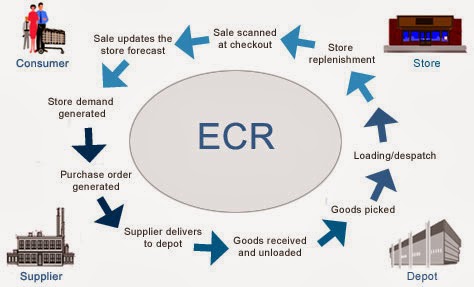
Here's an oversimplified picture of your flow:
Modern Supply Chain
Source: http://www.igd.com/our-expertise/Supply-chain/In-store/3459/On-Shelf-Availability

If you relax for a minute, you could probably brainstorm several ideas of how Google Glass can be applied in warehouse.
But let's focus on 1 link on that picture: "Goods received and unloaded". If you break it down into pieces, it seems to be a rather simple process:
  1. Truck comes to your warehouse.
  2. You unload the truck.
  3. Add all items into your Warehouse Management system.
  4. Place all items into specific place inside the warehouse.
But it gets complicated, when you need to enter specific data manually: expiry dates, amount, etc. We thought about optimizing person's performance during this phase. Would it be great, if you could just
  1. pick a box with both of your hands
  2. handle it to the shelf
  3. go back to the truck & repeat
On one hand, you have some spare seconds, when you grab a box and handle it. On the other, Google Glass has camera and voice recognition.

We combined both of the approaches. And that's what we created:


Pretty cool, yeah? Here you can see automation of all basic tasks we mentioned above. It is incredible how useful Google Glass is for warehouse automation.

In the next section we're going to dive deep into technical details, so in case you're software engineer you can find some interesting pieces of code below.

Working with Camera in Google Glass

We wanted to let person grab a package and scan it's barcode at the same time. First of all, we tried implementing barcode scanning routines for Glass. That's great that Glass is actually an Android device.
So, as usual, add permissions to AndroidManifest.xml, initialize your camera and have fun.
<uses-feature android:name="android.hardware.camera" />
<uses-feature android:name="android.hardware.camera.autofocus" />

<uses-permission android:name="android.permission.CAMERA" />
<uses-permission android:name="android.permission.RECORD_AUDIO" />
But wait, what the hell is going on? Why does my screen shows something similar to this:


Glass is a beta product, so you need some hacks. When you implement surfaceChanged(...) method, don't forget to add parameters.setPreviewFpsRange(30000, 30000); call. Eventually, your surfaceChanged(...) should look like this:

public void surfaceChanged(SurfaceHolder holder, int format, int width, int height) {
    ...
    Camera.Parameters parameters = mCamera.getParameters();
    Camera.Size size = getBestPreviewSize(width, height, parameters);
    parameters.setPreviewSize(size.width, size.height);
    parameters.setPreviewFpsRange(30000, 30000);
    mCamera.setParameters(parameters);

    mCamera.startPreview();
    ...
}
That's the way you can make it work.
P.S. Unfortunately, Glass has now just 1 focus mode -- "infinity". I hope, things will get better in the future.

Working with Barcodes in Google Glass

Once you see a clear picture inside your prism, let's proceed with barcode scanning. There're some barcode scanning libraries out there: zxing, zbar, etc. We grabbed a copy of zbar library and integrated it into our project.
  1. Download a copy of it.
  2. Copy armeabi-v7a folder and zbar.jar file into libs folder of your project.
  3. Use it with camera:
Initialise JNI bridge for zbar library:
static {
    System.loadLibrary("iconv");
}
Add to onCreate(...) of your activity:
setContentView(R.layout.activity_camera);
// ...
scanner = new ImageScanner();
scanner.setConfig(0, Config.X_DENSITY, 3);
scanner.setConfig(0, Config.Y_DENSITY, 3);
And create Camera.PreviewCallback instance like this. You'll scan image and receive scanning results in it.
Camera.PreviewCallback previewCallback = new Camera.PreviewCallback() {
    public void onPreviewFrame(byte[] data, Camera camera) {
        Camera.Size size = camera.getParameters().getPreviewSize();

        Image barcode = new Image(size.width, size.height, "NV21");
        barcode.setData(data);
        barcode = barcode.convert("Y800"); 
        int result = scanner.scanImage(barcode);

        if (result != 0) {
            SymbolSet syms = scanner.getResults();
            for (Symbol sym : syms) {
                doSmthWithScannedSymbol(sym);
            }
        }
    }
};
You can skip barcode.convert("Y800") call and scanner would still work. Just keep in mind that Android camera returns images in NV21 format by default. zbar's ImageScanner supports only Y800 format. That's it. Now you can scan barcodes with your Glass :)

Handling Voice input in Google Glass

Apart from Camera, Glass has some microphones, which let you control it via voice. Voice control looks natural here, although people around you would find it disturbing. Especially, when it can't recognize "ok glass, google what does the fox say" 5 times in a row.
As you can remember, we want to avoid manual input of specific data from packages. Some groceries have expiry date. Let's implement recognition of expiry date via voice. In this way, a person would take a package with both hands, scan a barcode, say expiry date while handling a package and get back to another package.
From technical standpoint, we need to solve 2 issues:
  1. perform speech to text recognition
  2. perform date extraction via free-form text analysis
Task #1 can be solved via Google Speech Recognition API in Android. In order to use it from Glass, you need to use default Android Intents:
Intent intent = new Intent(RecognizerIntent.ACTION_RECOGNIZE_SPEECH);   
intent.putExtra(RecognizerIntent.EXTRA_PROMPT, "Say expiry date:");   
startActivityForResult(intent, EXPIARY_DATE_REQUEST);
And override onActivityResult(...) in your Activity, of course:
@Override
protected void onActivityResult(int requestCode, int resultCode, Intent data) {
    if (resultCode == Activity.RESULT_OK && requestCode == EXPIARY_DATE_REQUEST) {
        doSmthWithVoiceResult(data);
    } else {
        super.onActivityResult(requestCode, resultCode, data);
    }
}

public void doSmthWithVoiceResult(Intent intent) {
    List<String> results = intent.getStringArrayListExtra(RecognizerIntent.EXTRA_RESULTS);
    Log.d(TAG, ""+results);
    if (results.size() > 0) {
        String spokenText = results.get(0);
        doSmthWithDateString(spokenText);
    }
}
Once we have free-form text from Google Voice Recognition API we need to solve task #2: get contextual information from it. We need to understand, which date is hidden behind phrases like:
  • in 2 days
  • next Thursday
  • 25th of May
In order to do this, you can either write your own lexical parser, or find a third-party library for that. Eventually, we found an awesome library called natty. It does exactly this: it is a natural language date parser written in Java. You can even try it online here.
Here's how you can use it in your project. Add natty.jar to your project. If you use maven, then add it via:
<dependency> 
    <groupId>com.joestelmach</groupId>
    <artifactId>natty</artifactId>
    <version>0.8</version>
</dependency>
If you just copy jars to your libs folder you'll need natty with dependencies. Download all of them:
  • stringtemplate-3.2.jar
  • antlr-2.7.7.jar
  • antlr-runtime-3.2.jar
  • natty-0.8.jar
And use Parser class in your source:
// doSmthWithDateString("in 2 days"); 

public static Date doSmthWithDateString(String text) {
    Parser parser = new Parser();
    List<DateGroup> groups = parser.parse(text);
    for (DateGroup group : groups) {
        List<Date> dates = group.getDates();
        Log.d(TAG, "PARSED: " + dates);
        if (dates.size() > 0) {
            return dates.get(0);
        }
    }
    return null;
}
That's it. natty does a pretty job of transforming your voice into Date instances.

Instead of Summary

Glass is an awesome device, but it has some issues now. Even though it's still in beta, you'll get tons of joy, while developing apps for it! So grab a device, download SDK and have fun!
P.S. You can find full source code for this example here: https://github.com/eleks/glass-warehouse-automation.

12/16/2013

Introduction to Android NDK

Introduction


To develop applications for Android OS, Google offers two development packages: SDK and NDK. There are many articles and books as well as good guidelines from Google about SDK. But even Google does not provide enough materials about NDK. Among all the existing books, I would like to single out only this one, “Cinar O. - Pro Android C++ with the NDK – 2012.” 
This article is intended for those with a lack of (or some) background in Android NDK who would like to strengthen their knowledge. I will pay attention to JNI. It seems to me that I have to start just from this interface. Also, at the end, we will review a short example with two functions of file writing and reading.

What is Android NDK?


Android NDK (Native Development Kit) is a set of tools that allows you to implement a part of your application using such languages as С/С++.

When to use the NDK?


Google recommends using NDK only in rare cases. Usually, these cases are the following:
  • Necessity to increase performance (e.g. sorting of large data volumes);
  • Use of a third-party library. For example, many applications are written in the С/С++ languages and it is necessary to use the existing material. Examples of such libraries are Ffmpeg, OpenCV;
  • Programming on low level (for example, everything what goes beyond Dalvik).

What is JNI?


Java Native Interface is a standard mechanism for code execution under control of the Java Virtual Machine. The code is written in Assembler or С/С++ and assembled as dynamic libraries. It allows for the non-usage of the static binding. This provides an opportunity to call a С/С++ function from the program on Java and vice versa. 

JNI Advantages


The main competitive advantage of JNI compared to its analogues (Netscape Java Runtime Interface or Microsoft’s Raw Native Interface and COM/Java Interface) is that it was initially developed for ensuring binary compatibility, for compatibility of applications written for JNI, for any Java virtual machines on the concrete platform (while speaking about JNI, I do not mean the Dalvik machine as JNI was written by Oracle for JVM which is suitable for all Java Virtual Machines). That is the reason the compiled code on С/С++ will be executed regardless of platform. Earlier versions did not allow for the implementation of binary compatibility.   
Binary compatibility is a program compatibility type. It allows a program to work in different environments without changing its executable files.

Organization of JNI


Figure 1. – JNI – Interface pointer
The JNI table is organized like a table of virtual functions in С++. The VM can work with several such tables. For example, one will be for debugging, the other for usage. The JNI interface pointer is only valid in the current thread. This means that the pointer cannot move from one thread into another. However, native methods can be called from different threads.
Example:
jdouble Java_pkg_Cls_f__ILjava_lang_String_2 (JNIEnv *env, jobject obj, jint i, jstring s)
{
     const char *str = (*env)->GetStringUTFChars(env, s, 0); 
     (*env)->ReleaseStringUTFChars(env, s, str); 
     return 10;
}
  • *env – an interface pointer;
  • оbj – a reference to the object inside which the native method is declared;
  • i and s – passed arguments;

Primitive types are copied between the VM and native code and objects are passed by the reference. The VM should trace all references that are passed to native code. GC cannot free all references passed to native code. But at the same time native code should inform the VM that it does not need references for passed objects.

Local and Global References


JNI defines three reference types: local, global and weak global references. Local ones are valid until the method is finished. All Java objects returned by JNI functions are local references. A programmer should hope that the VM would clean all local references. Local references are available only in the thread where they were created. However, if it is necessary they can be freed at once using DeleteLocalRef the JNI method of the interface:

jclass clazz;
clazz = (*env)->FindClass(env, "java/lang/String");
...
(*env)->DeleteLocalRef(env, clazz);

Global references remain valid until they are explicitly freed. To create a global reference you have to call a NewGlobalRef method. If the global reference is unnecessary, then it can be deleted by the DeleteGlobalRef method:

jclass localClazz;
jclass globalClazz;
...
localClazz = (*env)->FindClass(env, "java/lang/String");
globalClazz = (*env)->NewGlobalRef(env, localClazz);
...
(*env)->DeleteLocalRef(env, localClazz);

Errors


JNI does not check for errors such as NullPointerException, IllegalArgumentException. Reasons:

  • decrease in performance;
  • in the most C libraries functions, it is very difficult to be protected from errors.

JNI allows for the usage of Java Exception. Most JNI functions return an error code but not Exception itself. Therefore, it is necessary to handle the code itself and throw Exception to Java. In JNI, the error code of the called functions should be checked and after that ExceptionOccurred() should be called to return an error object: 

jthrowable ExceptionOccurred(JNIEnv *env);

For example, some JNI functions of access to arrays don’t return errors. But they can call the exception ArrayIndexOutOfBoundsException or ArrayStoreException.

JNI Primitive Types


In JNI exists its own primitive and reference types of data.
Table 1. Primitive types.
Java TypeNative TypeDescription
booleanjbooleanunsigned 8 bits
bytejbytesigned 8 bits
charjcharunsigned 16 bits
shortjshortsigned 16 bits
intjintsigned 32 bits
longjlongsigned 64 bits
floatjfloat32 bits
doublejdouble64 bits
voidvoidN/A

JNI Reference Types 


Figure. 2 – JNI reference types

Modified UTF-8


The JNI uses modified UTF-8 strings to represent different string types. Java uses UTF-16. UTF-8 is mainly used in C because it encodes \u0000 as 0xc0, instead of the usual 0x00. Modified strings are encoded so that character sequences that contain only non-null ASCII characters can be represented using only one byte.  

JNI Functions: 


The JNI interface includes not only its own dataset but also its own functions. It will take a lot of time to review the dataset and functions since there are plenty of them. You can find out more information from the official documentation: http://docs.oracle.com/javase/6/docs/technotes/guides/jni/spec/functions.html

Sample of using JNI functions 


Below you will find a short example in order to make sure that you have correctly understood the material covered:

#include <jni.h>
    ...
JavaVM *jvm;
JNIEnv *env;
JavaVMInitArgs vm_args;
JavaVMOption* options = new JavaVMOption[1];
options[0].optionString = "-Djava.class.path=/usr/lib/java";
vm_args.version = JNI_VERSION_1_6;
vm_args.nOptions = 1;
vm_args.options = options;
vm_args.ignoreUnrecognized = false;
JNI_CreateJavaVM(&jvm, &env, &vm_args);
delete options;
jclass cls = env->FindClass("Main");
jmethodID mid = env->GetStaticMethodID(cls, "test", "(I)V");
env->CallStaticVoidMethod(cls, mid, 100);
jvm->DestroyJavaVM();

Let’s analyze by string:

  • JavaVM – provides an interface for calling functions which allows for the creation and removal of JavaVM;
  • JNIEnv – ensures most of the JNI functions;
  • JavaVMInitArgs – arguments for JavaVM;
  • JavaVMOption – options for JavaVM;

The JNI_CreateJavaVM() method initializes JavaVM and returns a pointer to the JNI interface pointer.
JNI_DestroyJavaVM() method loads the created JavaVM. 

Threads 


The kernel manages all the threads running on Linux; still they can be attached to the JavaVM via functions AttachCurrentThread and AttachCurrentThreadAsDaemon. If the thread is not attached, it has no access to JNIEnv. Android doesn’t stop the threads created from JNI, even if the GC is running.  The thread remains attached until it calls for the DetachCurrentThread method to detach itself from JavaVM.

First Steps


The structure of your project should look as is shown in Figure 3:
Figure. 3 – Project Structure
As Figure 3 shows, all the native code is stored to a jni folder. After a project build, the Libs folder should be separated into four subfolders. It means, one separate native library for each processor architecture. The quantity of libraries depends on the quantity of architectures selected. 
To create a native project, create a mere Android project and follow the steps: 
  • Create a jni folder –  project sources root folder with native code sources;
  • Create an Android.mk to build a project;
  • Create an Application.mk to store compilation details. It is not required but is recommended as it allows for flexible compilation setting;
  • Create an ndk-build file that will launch the compilation process (also not required).

Android.mk


As it was mentioned before, Android.mk is a makefile for native project compilation. Android.mk is used to group your code into modules. Under modules I mean statistic libraries, copied into the libs folder of your project, shared libraries and standalone executable.
Example of minimal configuration:

LOCAL_PATH := $(call my-dir)
include $(CLEAR_VARS)
LOCAL_MODULE    := NDKBegining
LOCAL_SRC_FILES := ndkBegining.c
include $(BUILD_SHARED_LIBRARY)

Let’s take a detailed look at:

  • LOCAL_PATH := $(call my-dir) – function call my-dir is used to return the path of the folder the file is called in;
  • include $(CLEAR_VARS) - cleans all the variables except LOCAL_PATH. It’s necessary to take into account as all the files are compiled in a single GNU Make context where all the variables are global;
  • LOCAL_MODULE – The name of the output module. In the above-mentioned example, the output module name is set as NDKBegining, but after the build, libNDKBeginin libraries are created in the libs folder. Android adds a lib prefix to the name, but in java code you should indicate the library name without a prefix (that is, the name should be the same as in makefiles);
  • LOCAL_SRC_FILES – listing source files to be built;
  • include $(BUILD_SHARED_LIBRARY) points type of the output module.
One may set custom variables in Android.mk; however they must stick to the following syntax: LOCAL_, PRIVATE_, NDK_, APP_, my-dir. Google recommends naming custom examples as MY_. For example:

MY_SOURCE := NDKBegining.c

To call a variable $(MY_SOURCE)
Variable can also be concatenated, for example:

LOCAL_SRC_FILES += $(MY_SOURCE)

Application.mk


This makefile defines several variables that make compilation more flexible:

  • APP_OPTIM – optional variable which is set either to release or debug. This variable is used for optimization when building an application's modules. You may manage release as debug; however debug gives more information for settings;
  • APP_BUILD_SCRI defines an alternate path to Android.mk;
  • APP_ABI – is probably one of the most essential variables. It specifies target processor architecture to compile the modules. By default, APP_ABI is set to 'armeabi', which corresponds to ARMv5TE architecture. For example, to support ARMv7, armeabi-v7a should be used; for IA-32– x86, for MIPS – mips, whereas for multiple architectures support, you should set APP_ABI := armeabi armeabi-v7a x86 mips. With NDK revision 7 and higher, you can simply set APP_ABI := all  rather than enumerating all the architectures. 
  • APP_PLATFORM – names a target platform;
  • APP_STL Android provides a very minimal libstdc++ runtime library so a developer is limited in using C++ functionality. However, APP_STL variable enables support for the extended functionality; 
  • NDK_TOOLCHAIN_VERSION – enables the selection of a GCC compiler version (which, by default, is set to 4.6)

NDK-BUILDS


ndk-build is a wrapper around GNU Make.
After the 4th revision, flags were implemented for ndk-build: 
  • clean – cleans all the generated binary files;
  • NDK_DEBUG=1 – generates a debuggable code;
  • NDK_LOG=1 – displays log messages (is used for debugging);
  • NDK_HOST_32BIT=1 – Android supports 64-bit utilities version (for example, NDK_PATH\toolchains\mipsel-linux-android-4.8\prebuilt\windows-x86_64, etc. );
  • NDK_APPLICATION_MK=<file> – indicates path to Application.mk.
In NDK revision 5, the NDK_DEBUG flag was introduced. When it is set to “1” the debug version will be built. If the flag is not set, the ndk-build by default will verify whether the attribute android:debuggable="true" is set in AndroidManifest.xml. If you are using NDK above revision 8, Google does not recommend using attribute android:debuggable in AndroidManifest.xml. (As you are using “ant debug” or building the debug version by the means of and ADT plug-in, the NDK_DEBUG=1 flag will be added automatically). 
By default, support of a 64-bit utilities version is set; however, you can force the use of a 32-bit toolchain by using NDK_HOST_32BIT=1. Still, Google recommends using 64-bit utilities to improve performance of the large programs. 

How to build a project?


It used to be a painful process. You would install CDT plug-in and download cygwin or mingw compiler; download Android NDK; configure all this stuff in Eclipse settings; and finally, it won’t work. The first time I started working with Android NDK, it took me three days to configure all these things. The problem was in Cygwin: the permission 777 should have been set to the project folder. 
Now it’s much easier. Just follow this link http://developer.android.com/sdk/index.html and download the ADT Bundle, which provides everything you need to start compiling. 

Invoke the native methods from Java code


To call native code from Java, first of all you need to define native methods in Java class. For example: 

native String nativeGetStringFromFile(String path) throws IOException;
native void nativeWriteByteArrayToFile(String path, byte[] b) throws IOException;

You should put the reserved word “native” before the method. In such a way, the compiler knows that this is an entry point in the JNI. These methods should be implemented in C/C++ files. Google also recommends starting naming methods with nativeX, where X stands for the method’s actual name.  Still, before implementing these methods manually you should generate a header file. You can perform this action either manually or using a JDK javah utility. Let’s take it a step further and not run it from the console, but rather by the standard Eclipse means.

  • Go to Eclipse and select Run-External Tools-External Tools Configuration;
  • Create new configuration;
  • Indicate the path to javah.exe from jdk in Location field (for example, C:\Program Files (x86)\Java\jdk1.6.0_35\bin\javah.exe);
  • Indicate the path to the directory bin/classes (for example, «${workspace_loc:/NDKBegin/bin/classes}») in the working directory;
  • Arguments should be populated with the following argument: “-jni ${java_type_name}” (with no inverted commas).

Now we can run it. Your header files will be stored in the bin/classes directory. 
As a next step, copy these files into the jni directory of the native project. Next, open the project’s context menu and select Android Tools – Add Native Library. This allows us to use jni.h functions. Later on you can create a cpp file (sometimes Eclipse creates it by default) and write methods bodies that have been defined in the header file.   
You won’t find here a sample of code, as I haven’t inserted it on purpose, for the sake of the article’s length and readability.  Please follow the link on GitHub if you need an example https://github.com/viacheslavtitov/NDKBegining


11/01/2013

Google Glass Development without Glass


Here are the slides of my "Google Glass Development without Glass" presentation. As I promised, here is the follow-up blogpost with some code samples. If you haven't seen my presentation, I strongly suggest clicking through the slides!

0.Intro

Technologies emerge. Extremely. Wearable trend takes over the world. It seems like every week we start with articles about brand new devices, which would change our life! We've heard about lots of glasses, watches, wristbands, you name it. The most popular one is definitely Google Glass. Actually, it is Glass, who started this wearable hype!
You can just imagine, how all the wearbles can impact our daily and extreme activities. Check out, how we imagined that at eleks: https://glass.eleks.com/

From the other point of view, each new device brings new UX, SDKs and APIs. That's why we, developers, have to quickly adopt to the new techs. In this sense, Google Glass is a rather good device for developers. It runs the world-known Android OS. It just has an extremely strange UI and UX.

Google created a set of "best practices" of awesome Glassware. Actually, it can be applied to any wearble software:
  • Design for device -- know & test your device and it's abilities. 
  • Don't get in the way -- show the best data when users want it and be out of the way when they don't.
  • Keep it timely -- platform is the most effective when in-the-moment and up-to-date.
  • Avoid the unexpected -- surprising users with unexpected functionality is bad. On any platform.
Glass is different from the regular phone or tablet. The usual way of creating Android apps is through the Android SDK. Because of specific Glass's usage principles, Google introduced Mirror API. We'll dive into both of them later in the post.

1. Obtaining Glass

If you are among those 10000 people, who have Glass, you can skip this chapter. Unfortunately, that's just 0.000002% of the world's population. So, welcome Stranger to this amazing world of Glass hacking without Glass.


Hopefully, you have some Android device. Then, you can install Google Glass UI there (disclaimer: I've tried this with Nexus 7 tablet with 4.2.2 rom and it worked perfectly, but I can't guarantee it will work on other device). In short, Google Glass UI is just another Home screen provider for your Android. In order to set it up, follow these steps:
  1. Go to: https://github.com/zhuowei/Xenologer
  2. Download Glass APKs: https://github.com/zhuowei/Xenologer#install
  3. Install them as you usually install APKs from third-parties
  4. Follow steps at http://imgur.com/a/IBqFf to set up your "Nexus Glass"
  5. Say "ok glass, take a picture" and share your "woohoo-reaction" with the world #throughglass
You've obtained Glass. Now its time to hack!
Let's dive into Glass development with the help of our friend Mr. Bond. James Bond.
Once upon a time, he was in London. Somehow, he's got his Google Glass and enjoys the experience on a daily basis.

2. Example #1: Mirror API

If you are eager to try Mirror API out and don't want to mess with quick-start projects, I have a shortcut for you!
Let's try inserting a simple card into Glass Timeline:
  1. Go to: Google API Explorer --> Mirror API --> mirror.timeline.insert 
  2. Authorise via OAuth 2.0. Use Glass scopes:
    • https://www.googleapis.com/auth/glass.timeline
    • https://www.googleapis.com/auth/glass.location
  3. Populate request fields with values from the API.
  4. Execute request!
  5. Here's a link with some pre-populated data.
Now it's time to have even more fun! Let's try setting up demo-project.
  1. Set up a new project in https://code.google.com/apis/console
  2. Go to API Access, update project settings:
    1. Add to Redirect URIs: 
      • http://localhost:8080/oauth2callback
    2. Add to JavaScript origins: 
      • https://plusone.google.com
      • http://localhost:8080
      • https://mirror-api-playground.appspot.com (will be useful later) 
  3. Clone https://github.com/googleglass/mirror-quickstart-java
  4. Update file src/main/resources/oauth.properties with the values provided in Google API Access Console.
  5. mvn jetty:run it.
If everything goes smooth, you'll be able to authorize and have fun with your Glass Timeline! If you want to have even more fun with Mirror API, especially with Subscriptions to Location and Notifications, you should deploy your war to the real webserver. Google sends these updates only to https secured web-sites. For development purposes you can use provided ssl-proxy. Just modify MirrorClient#insertSubscription method.

3. Example #2: GDK

Update: Google recently released GDK Sneak Peak. Right now, when you try creating apps with it and running it on Nexus Glass, you'll get [INSTALL_FAILED_MISSING_SHARED_LIBRARY]. We're trying to find the way, to avoid that. As of now, there's no support for the official GDK Sneak Peak (auth, live cards, etc).


Google Glass is just another Android device with 640x360 screen (hello, screen fragmentation), Android 4.0.4, API level 15. Maybe, in the next releases of Glass, this will change. Now, when you want to port your existing Android app to Google Glass, you should just:
  1. Build your APK.
  2. Install it.
  3. Run via adb.
  4. Understand, that you need to update touch gestures support.
  5. Understand, that your UI is hardly usable.
  6. Understand, that your awesome Google Maps stopped working.
  7. So, double-check your application on real device! Everything can change in the near future!
It's a good idea to check out Google Glass Quick Start by Google. It explains a lot about Timeline, UI, Gestures and current limitations of the GDK.
In order to support touch gestures of Google Glass, have a look at this article: Touch Gestures. In short, here's the table with events corresponding to keycodes:
TapKEYCODE_DPAD_CENTER
Swipe rightKEYCODE_TAB
Swipe leftKEYCODE_TAB + isShiftPressed()
Swipe downKEYCODE_BACK
CameraKEYCODE_CAMERA

4. Example #3: GDK + Timeline API

Update: Google released GDKvXE12 update. It has Static Card support, but it is still limited and lacks menus, html templates, etc. The code mentioned below follows hacky way and may not work on the latest version of Glass.
So far, we've tried the official Mirror API way and the hacky GDK road. Now its time to combine both approaches. Let's insert a card into Timeline from withing your app!

I've  set up a sample project at github for you: https://github.com/pif/ukrbash-for-glass. After you fork/clone it, you can see glasslib.jar inside libs folder. This library would probably become the aforementioned GDK. It provides everything you need to know about Timeline UI.

All the magic is done via these steps:
  1. Initialise Timeline, get Timeline contentresolver. Look at:
    com.andrusiv.glass.bash.GlassService#onStartCommand(Intent, int, int).
  2. Create MenuItems for your card.
  3. Create TimelineItem.
  4. Insert it into ContentResolver.
Look through the classes & methods provided inside glasslib.jar. I hope, you'll find loads of interesting information!

5. Outro

Thanks everyone, for reading all the way down here. I hope now you have your pseudo-Glass and know how to develop for it. Share your experience in the comments and on github! Ok guys, have fun #throughglass!


7/24/2013

Boosting Android Apps Performance

While mobile vendor giants struggle to produce the most intellectual device, it appears that a huge amount of users want to buy a device as cheap as possible but still prefer smartphones over old-school feature-phones. This trend is mostly driven by a huge demand from emerging markets such as China and other Asian countries. Sub-$100 Android devices become a significant part of the market. There are rumors that the next version of Android will be aimed at low-end phones market, which means that this trend will continue to emerge.
This trend is leading to a great opportunity for app developers. However, with every great change come new challenges. Low cost devices usually have limited memory, small screen, slow CPUs and other limitations. App developers should care about performance of their code like never before.
There are three basic rules of writing applications with a great performance:

  1. Write efficient code.
  2. If the code is not efficient - profile and fix it.
  3. Continuously ensure that code is still efficient (ideally, after every single commit to your source control system). 

While items 1 and 2 are obvious, item 3 requires additional explanation. Our experience shows that most software developers start to care about performance of their app after users already posted angry comments on Google Play. It comes even harder to track app performance metrics when your app is big and complex and you ship new versions frequently. The problem is that it is much easier to fix performance issue right after it was introduced than in case it is here for a few weeks and tons of code dependent on that issue were written. Of course manual regression testing is inefficient in this case - you simply can’t do it frequently enough. Fortunately, there are things like continuous integration that make it possible to automate this routine and thus detect and fix performance issues as early as possible.
In this document we are going to focus on items 2 and 3, as the art of writing efficient code is bit complicated for a single publication.

Performance Optimization

Performance tuning of every Android application differs from application to application. However there is a general flow. It looks like this:


This is the so-called measure-evaluate-improve-learn cycle. This process can be applied to a variety of life activities. When tuning Formula 1 car, the same technique would be used. You just need different tools.
To start the optimization cycle we need to learn about the problem This can be done in the beginning of development, after manual testing with unsatisfactory performance results. This can be a report from CI tool, which was triggered after unsafe commit. This can also be a report from users on Google Play with complaints about low performance on specific device. Such an optimization may be needed before implementing new features, which is dependant on existing, not-fast-enough functionality.
After we learned about the problem we start the optimization. In order to improve performance, we need to identify the problem. And this is the place where measuring comes handy. Android SDK has built-in capabilities for profiling. With the help of traceview and DDMS one can profile and analyze performance of the application. Apart from that, measuring is helpful for automation of testing process, by giving determined data for comparison.
After the measurements are done, detecting the bottleneck is pretty straightforward. When the problem is found, it’s time to fix it by optimizing the code. That’s where you would need all your creativity and knowledge of the domain. If you know some hardcore techniques and cheats which still maintain the sustainability of code, try them! In case of Android, think about NDK and RenderScript usage. Good idea is to check how often GC is called inside your app. On low-cost devices heap size can be surprisingly small, which will lead to often garbage collection and therefore low responsiveness. Good practice is reusing memory, instead of allocating new blocks. Also in case of intensive IO operations, asynchronous reads/writes are a must, and probabilistic variations of algorithms together with intelligent caching techniques can save the day.
After each step of improvements we should again test the application, i.e. learn if the problem is fixed. If the results are not satisfactory, the process goes all over again until the problem is gone.
Performance optimizations usually involve a decent amount of refactorings. In order to make refactorings safe it’s a good practice to cover code with tests. In this case Continuous Integration tools can greatly simplify testing and maintenance job.

Continuous Application Support

Rome wasn’t build in a day. Even though people can make alpha mockups of applications in several days, a good application needs a lot more time to become mature.
When you own 1 application, you can choose couple of target devices and test your app on them. If you have 2 apps, you need twice as much time to test everything by hand. If you are an established mobile development company with a big mobile portfolio, costs for manual application testing can blow up your budget. Moreover, it’s hard to track how all the apps evolve over time.
Continuous Integration tools automate the process of application testing, deployment and maintenance. They help finding bugs early, save time and money during the lifespan of the project.
In case of Android projects, CI tools have proven their effectiveness, especially when there is a need to test applications on a variety of configurations. Currently, the most used CI for Android is Jenkins. It has an active and vibrant community of users, lots of useful plugins and is easily extensible.
Below is the proposed architecture for the private continuous integration testing environment, based on Jenkins CI:

This environment would allow:

  • testing multiple device configurations
  • tracking multiple projects
  • measuring test execution performance over time
  • analysing source code on every commit
  • finding android lint issues
  • automating deployment tasks

Actually, there’s almost no limit for the Jenkins CI improvements and customizations. With the help of custom plugins this system can be enriched with various kinds of actions, which automate daily DevOps routines.
Of course, there is no silver bullet and implementing CI environment also needs a lot of resources, intelligence and of course people. Tests have to be implemented by people who have programming skills, testing infrastructure has to be set up and maintained by an administrator, and whole environment needs additional hardware and software expenses.  The effectiveness of automation start to show off after certain amount of manual work redundancy, which is often the case with Android development.

Conclusion

Keeping up with fast-changing industry standards is far from trivial. Supporting thousands of different devices with different OS versions each is indeed not easy. Supporting several apps for this market is even harder. Keeping it all fast is close to impossible. Maintaining this with every new release or bugfix is a pure nightmare. Without a right tool.
Implementing functionality changes is very similar to production of goods on factory. Every good, as every update, is designed with accuracy and intelligence. But before reaching end users each one of them passes same strict quality control, keeping the production massive, continuous and reliable.

by Ostap Andrusiv, Victor Haydin and Markiyan Matsekh

6/19/2013

Scaladroids: Developing Android applications using Scala

Scala is a functional and object-oriented programming language. It is statically typed and designed to concisely express your programming ideas in an elegant, type-safe and lightweight manner. Moreover, Scala compiles down to Java bytecode. This allows Scala applications to leverage the usage of existing Java libraries.

On the other side, Android is one of the most popular mobile operating system nowadays. Android applications are usually developed with Java. Source code compiles down to JVM bytecode and later gets translated into Android's 'dexcode'.

Why not try combining both of the technologies?

The presentation below explores the ways in which Scala can be applied to Android development. Look inside and comment, how you leverage the power of Scala!


Presented by Ostap Andrusiv, Software Engineer during Android Developer Days 2013 in Ankara.

12/20/2012

Android vs. iOS: UI/UX Differences


Challenge

Create application that supports both platforms (iOS and Android) and has a similar functionality optimized for interaction design principles and users expectations unique to each platform.

Environment

The important thing to keep in mind is that iOS and Android environments are based on unique for each platform guidelines, user interaction architecture and design patterns. There is a number of iOS and Android similarities in look and behavior of various UI components like

  • information structure; 
  • basic UI elements (sliders, checkboxes, tabs, text boxes, fields etc.); 
  • list-based navigation; 
  • majority of gesture touch controls (excluding “tap and hold” gesture, which is commonly used to reveal contextual bar with options or enter a data selection mode).

However the number of differences is worth paying attention to. Below you may find a short overview of the core design peculiarities that should help better understand differences in the design approach for both Android and iOS.

1. “Back” navigation. 
In iOS applications “back” option is placed in the upper-left corner of the navigation bar. It is used to navigate backward within the defined screens in the application however it is not used to navigate backward across the entire device.
In Android devices there are two types of “back” actions: “up and “back”. “Up” is placed in the upper-left corner of the top bar and is used to navigate up the application’s information hierarchy. In contrast, “back” option is presented as a button on the physical device that allows navigating backward across the entire device.
Back navigation in GMail for Android and Dropbox for iOS

2. Top navigation. 
In iOS applications tab navigation is placed at the bottom of the screen. In addition, according to iOS guidelines there are no more than 5 tabs displayed at a time.
In Android applications tabs are recommended to be placed at the top of the screen. Besides scrollable tabs are allowed to be used in case there are more tabs than can fit in the viewable screen width.
Top navigation in Google Play and Dropbox for iOS
3. Switching between various data views.
In iOS applications switching between views of the single set of data is typically done through the bar divided into segments.  Each segment is responsible for one view.
In Android applications switching between views is done through the UI control “spinner”. This control is presented like a drop-down list of options. “Spinner” is usually placed at the top action bar.
Switching between data views in Google Calendar for Android and iOS Calendar
4. Search.
In iOS applications the searching UI control is placed at the top of the screen mainly.
In Android applications several searching options are available:

  • “search bar” at the top of the screen that is similar to the iOS approach. However the bar is hidden until the user clicks on the search icon;
  • “search widget” that can be placed anywhere within the application interface. Coomonly it is used within the application’s action bar at the top of the screen.

Search in Google Play and Foursquare for iOS
5. Actions. 
In iOS applications can be accessed through the toolbar that contains action buttons, through the action button that is in the upper-right corner hand side of the navigation bar or through the buttons within the interface screen.
In Android applications it is recommended to display actions in the action bar at the top of the screen. If there is any need in displaying more actions than can fit on the action bar, either an action overflow icon appears on the action bar for devices that don’t have a hardware “menu” button, or the user accesses additional actions by pressing a hardware “menu” button on devices where there is one. Android applications may also use contextual action bar. A contextual action bar is a temporary action bar that overlay the app's action bar for the duration of a particular sub-task.
Actions in GMail for Android and GMail for iOS
6. Screen sizes and resolutions. 
iOS phones, for instance, come in two screen sizes and three resolutions (including the latest iPhone 5).
Android devices are represented by a lager list of screen sizes and screen resolutions. This issue has a significant impact on the layout while designing the application.

Summary

It may appear as the straightforward idea to create one application for both platforms however important issue to consider is that interface elements of both platforms are not the same.
Though application’s core features and functionality may be the same on both platforms application’s interface should follow specific for each platform guidelines. Therefore to meet user expectations and ensure smooth user experience application’s design should be adapted to the unique platform design patterns and respect native UI standards.

by Iryna Pantel, UX Designer